
Until now, everything you did on Spare Cores lived in the URL: a carefully tuned server search, a comparison of a dozen instances, or an Advisor assessment for your workload. If you wanted to get back to it the following week, you had to bookmark the link in your browser, or dig it out of a Slack thread you shared with your team.
So we added free user accounts. After a quick registration with your email or GitHub account, you can save and annotate your research on the site, and compare or filter without the limits that apply to guests. In short:
- Bookmarks: save server and database searches, comparisons, Advisor assessments, and individual servers or databases, each with an optional note.
- No limits: compare any number of servers or databases, and filter by any number of countries and regions.
- One place for everything: find, sort, and edit all your saved items on the new Bookmarks page.
Note that browsing the site stays open to everyone without an account: server and database listings, benchmark scores, the Advisor, and comparisons of up to four instances. Comparison links shared with you also keep working, no matter how many servers they include.
Sign Up in Seconds #
Click "Register" in the top right corner of any page, then either fill in your name, email address, and password, or continue with GitHub. Email sign-ups get a verification code in their inbox. Subscribing to our newsletter is optional, and you can leave it unchecked.
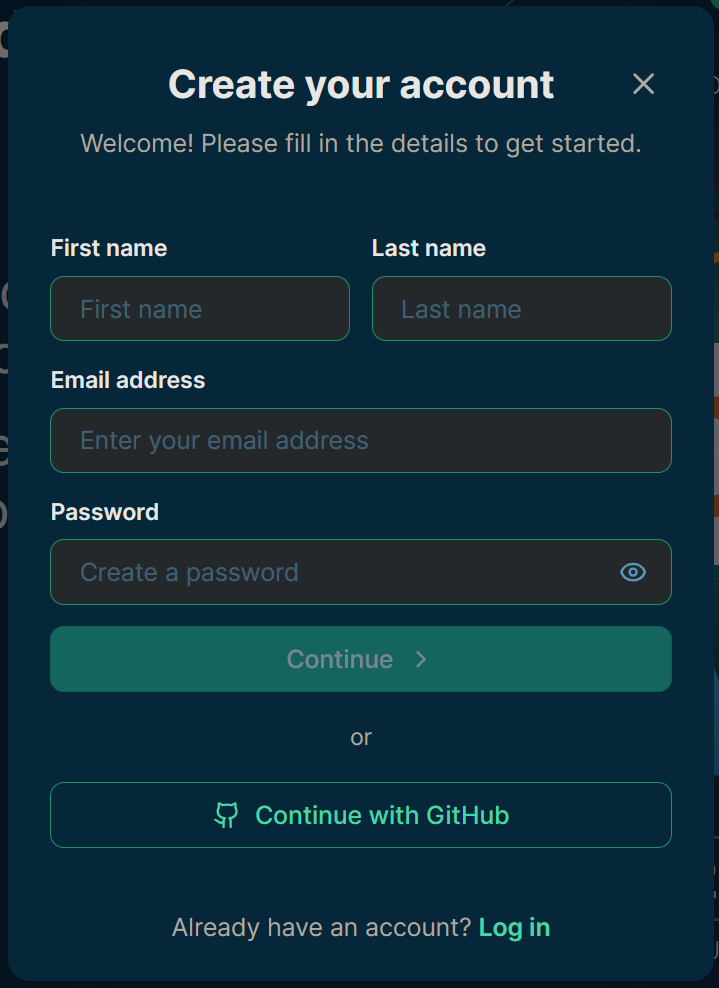
Register with your email address or GitHub account
After logging in, your avatar replaces the "Register" button. Clicking it opens a menu with links to your Bookmarks, your profile (where you can also delete your account), and signing out.
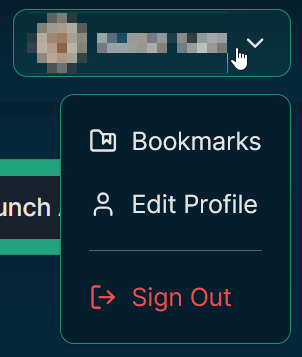
The account menu in the header
You don't have to register up front either. When you click a feature that needs an account, such as the bookmark icon next to a server, the registration window opens right away. After you sign up, the action you clicked is completed, so the server ends up in your bookmarks without a second click.
Compare and Filter Without Limits #
Guests can now add up to four servers or databases to a comparison, filter by one country, and select up to three regions at a time. We added these limits because bots, search engines, and LLM tools kept loading our servers with unrealistic combinations of random regions. Going over any of these limits now shows a short notice with a link to the registration window:
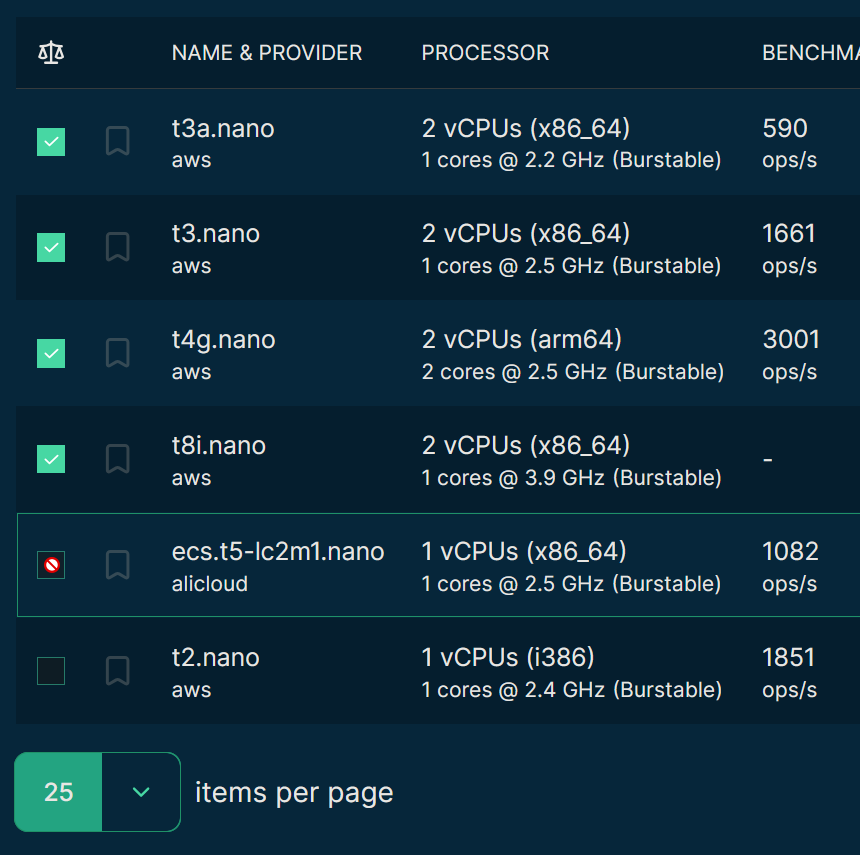
Guests can compare up to four servers or databases
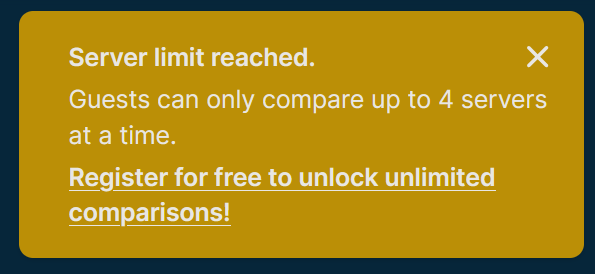
The notice shown when a guest tries to add a fifth server
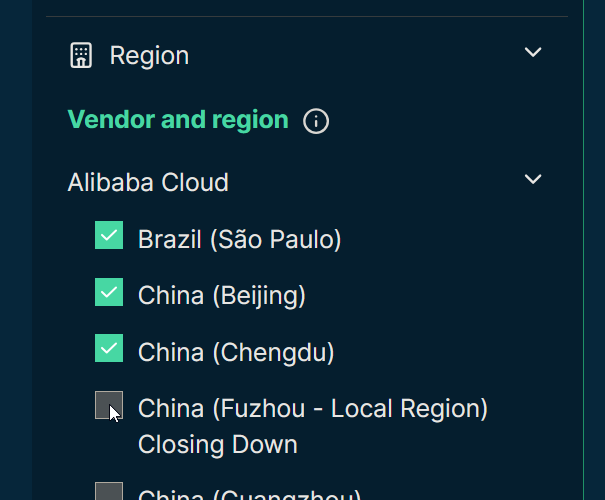
Guests can filter by one country and up to three regions at a time
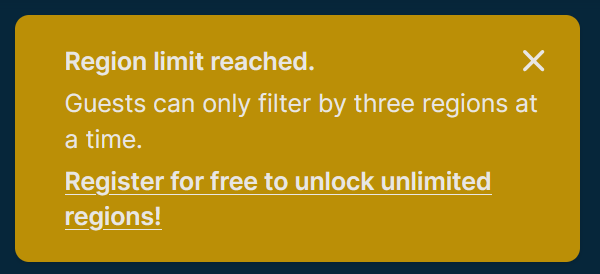
The notice shown when a guest selects the third region
Registered users have none of these limits: pick as many regions and countries as you need on the server and database listings, and put all of them side by side on the server and database comparison pages. Combined with searching and ordering servers by any benchmark score, this makes it much easier to shortlist the best value servers across all the locations you care about.
Bookmarks #
You can bookmark the following:
- Servers and databases: use the bookmark button on a server or database details page, or the bookmark column in the listing tables.
- Searches: save the current filters and columns on the server or database listing with the bookmark icon next to the page title.
- Comparisons: save the selected servers or databases from the comparison pages.
- Assessments: save the recommendations for your workload from the Advisor.
Each saved item gets a name and an optional note of up to 2,000 characters, so you can record why you shortlisted a server or what a comparison was meant to show.
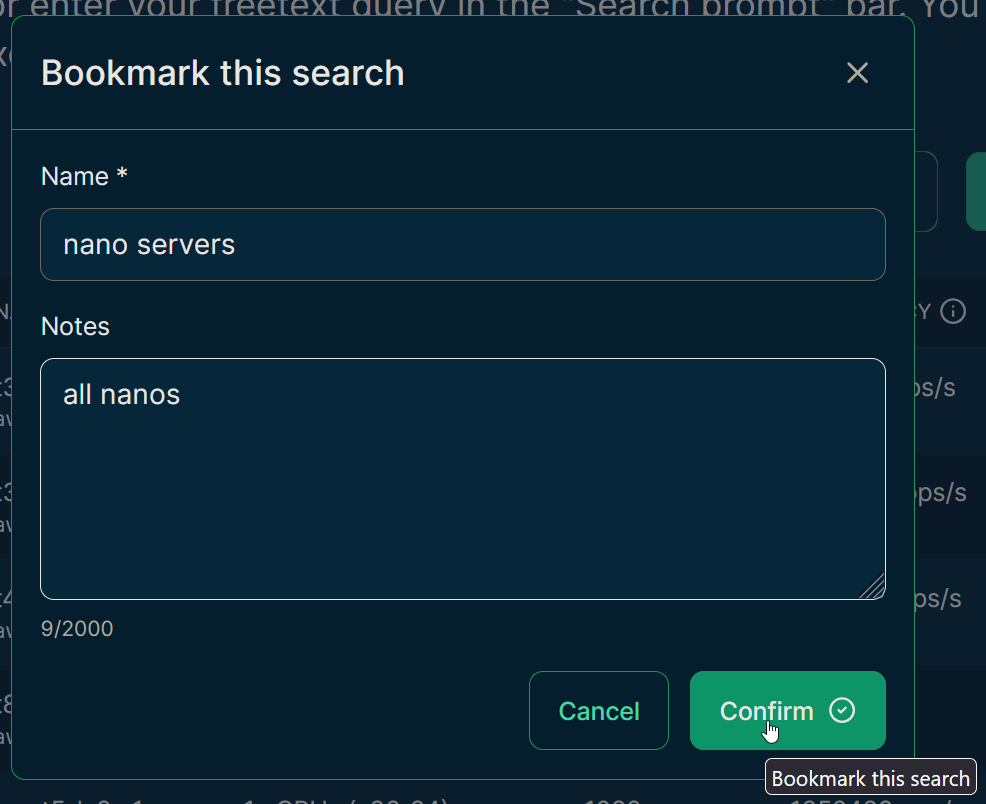
Add a name and an optional note when saving
All your saved items show up on the Bookmarks page, which you can open from the account menu. Search by name, filter by type (each filter shows the number of matching items), and sort by name, by the time you bookmarked them, or by your own order: just drag and drop the cards. You can also rename items, edit their notes, or delete them from here.
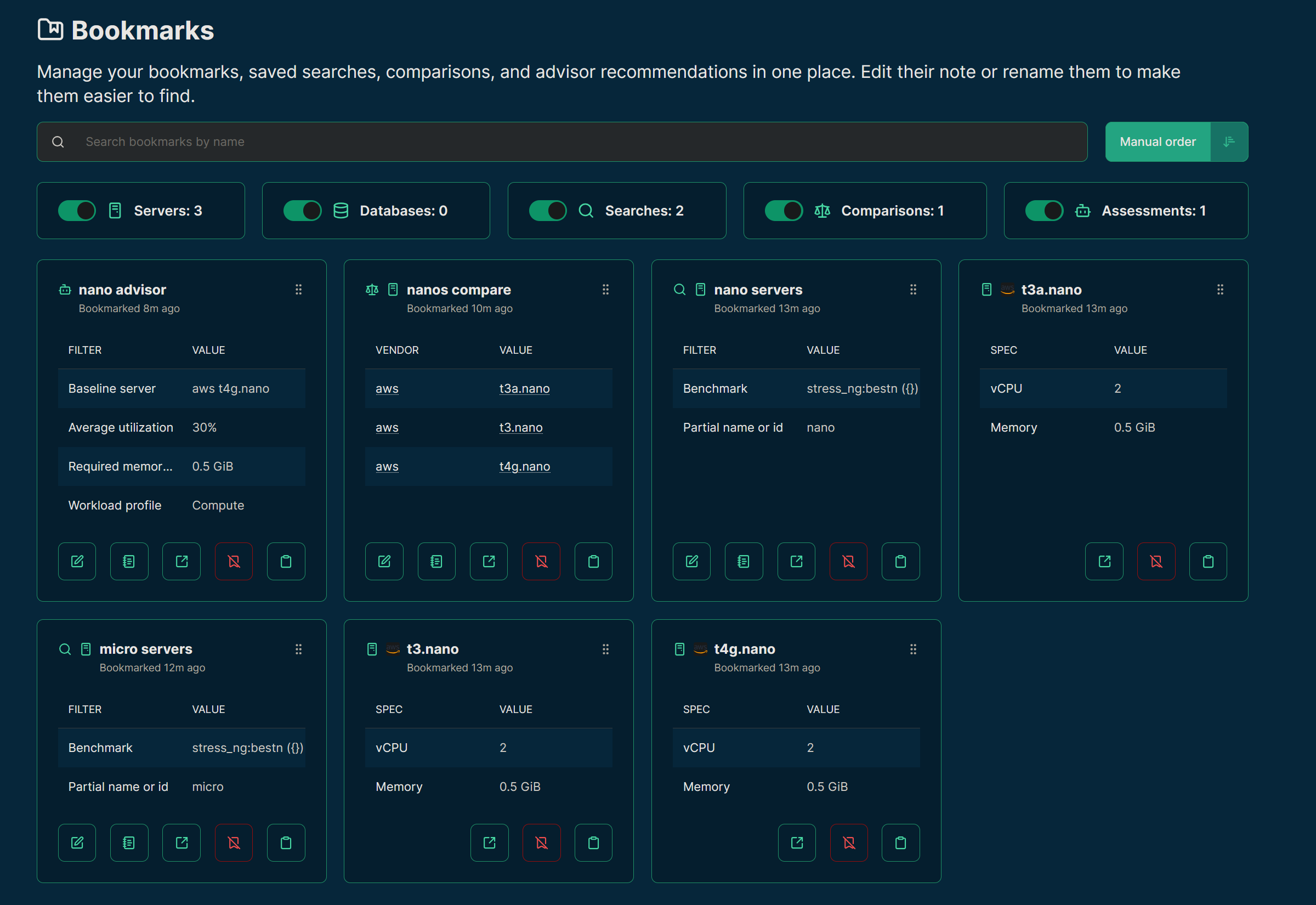
All your saved items on the Bookmarks page
Feedback #
If you haven't done so yet, register for free and save your first comparison! We would love to hear what else you would like to keep track of on the site, so please share your feedback or suggestions in the comment box below.